
Globe eSIM: How to Get, Install and Activate an eSIM
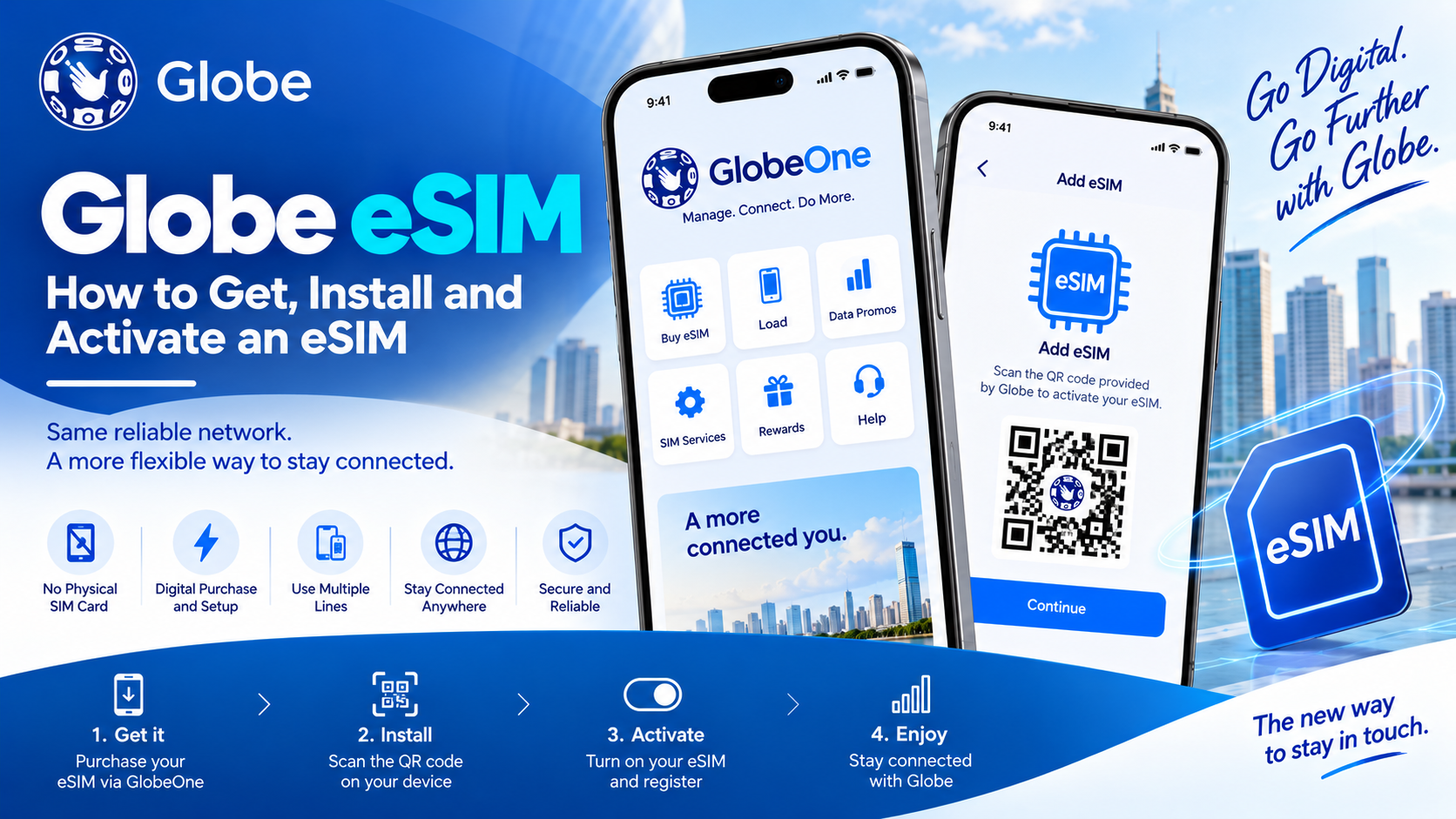
A Globe eSIM gives you a digital mobile connection without the need for a physical SIM card. Globe offers eSIM options for both prepaid and postpaid customers, subject to the applicable service and device requirements. Prepaid customers can purchase a local eSIM through the GlobeOne app, while new postpaid customers can request an eSIM during the plan application process.
The eSIM profile goes directly onto a compatible smartphone. After purchase, Globe provides the installation details through the app or email, depending on the service.
Globe eSIM at a Glance
| Item | Details |
|---|---|
| Globe Prepaid eSIM | Available |
| Globe Postpaid eSIM | Available |
| TM eSIM | Currently unavailable |
| Physical SIM to eSIM | Available through GlobeOne for eligible users |
| Installation | QR code or in-app installation |
| Compatible phones | eSIM-capable and carrier-unlocked devices |
| Prepaid purchase channel | GlobeOne app |
| Registration | Required under Philippine SIM registration rules |
Globe states that its Prepaid eSIM works with compatible iOS and Android devices. The GlobeOne app can also perform a compatibility check before purchase.
What Is a Globe eSIM?
An eSIM is a digital version of a SIM that resides inside a compatible device. It provides the same type of mobile network connection as a physical SIM, while removing the need for a plastic SIM card.
A Globe Prepaid eSIM comes with a mobile number and initial prepaid load. Customers can purchase it digitally and install it directly on an eligible phone.
Main advantages include:
- No physical SIM card or SIM tray handling
- Digital purchase and delivery
- QR-code-based installation
- Support for multiple eSIM profiles on compatible phones
- Easier switching between available mobile lines
- GlobeOne app support for prepaid eSIM services
Who Can Get a Globe eSIM?
Globe currently offers eSIM services to Globe Prepaid and Globe Postpaid customers. TM customers do not currently have access to the Globe eSIM service listed in Globe’s eSIM FAQ.
For a new postpaid line, customers can select eSIM during the online plan application. Globe sends the digital QR code through email.
Existing customers may also qualify for a physical-SIM-to-eSIM conversion through GlobeOne, based on account and device eligibility.
Globe eSIM Device Requirements
Your smartphone needs eSIM capability before you purchase or transfer a Globe eSIM.
You can check your phone through its settings:
iPhone
- Open Settings
- Tap Cellular
- Look for Add eSIM or Set Up Cellular
Samsung
- Open Settings
- Tap Connections
- Open SIM Manager
- Look for an option to add an eSIM
Google Pixel
- Open Settings
- Go to Network & Internet
- Select SIMs
- Look for the option to add or set up an eSIM
Globe also provides an eSIM compatibility test through the GlobeOne app for its prepaid eSIM service.
Things to Check Before Buying a Globe eSIM
Check these items before making the purchase:
- Your phone supports eSIM.
- Your phone has an available eSIM slot.
- Your phone can connect to the internet during installation.
- Your device does not have a carrier lock that prevents Globe service.
- You have access to the email address used for the transaction.
- Your device meets Globe’s compatibility requirements.
Globe places responsibility on the customer to verify carrier-unlock status and available eSIM capacity before purchase.
How to Get a Globe Prepaid eSIM
Globe Prepaid customers can get a local prepaid eSIM through the GlobeOne app.
The general process is:
- Download and update the GlobeOne app.
- Open the app.
- Look for the prepaid eSIM offer.
- Select the option to purchase a local prepaid eSIM.
- Complete the device compatibility check.
- Complete the required purchase checks.
- Pay for the eSIM.
- Check your email for the QR code and installation instructions.
- Install the eSIM on your compatible phone.
- Complete SIM registration before using the service.
Globe’s current prepaid eSIM process supports QR-code installation and, on supported devices, direct in-app eSIM download.
How to Convert a Globe Physical SIM to eSIM
Existing Globe Prepaid customers may convert their physical SIM to an eSIM through GlobeOne.
Follow these steps:
- Open GlobeOne.
- Go to SIM Services.
- Select Change SIM.
- Choose eSIM or the physical-SIM-to-eSIM option.
- Complete the device compatibility check.
- Complete the required pre-purchase checks.
- Verify the OTP sent to your registered number.
- Proceed with payment.
- Check your email for the QR code and instructions.
- Scan the QR code or use the available in-app installation option.
- Finish the eSIM setup on your phone.
Globe’s support page confirms this process for eligible prepaid users.
For existing postpaid customers, Globe also provides a physical-SIM-to-eSIM upgrade through GlobeOne. Eligible postpaid customers can also visit a Globe store for assistance.
How to Install eSIM on iPhone
After receiving your Globe eSIM QR code, connect your iPhone to the internet.
Then:
- Open Settings.
- Tap Cellular.
- Select Add eSIM or Set Up Cellular.
- Choose the QR-code option.
- Scan the Globe eSIM QR code.
- Follow the instructions displayed on the screen.
- Add the Globe cellular plan.
- Check that the new Globe line appears under Cellular settings.
Globe’s official installation instructions use the QR code supplied with the digital eSIM.
How to Install eSIM on Android
Android menus can vary by manufacturer and software version.
For Samsung phones, the Globe instructions are:
- Open Settings.
- Select Connections.
- Tap SIM Card Manager.
- Select Add Mobile Plan or the available eSIM option.
- Choose Scan Carrier QR Code.
- Scan your Globe eSIM QR code.
- Confirm the installation.
- Check that the Globe eSIM appears in SIM Manager.
Google Pixel devices use a different menu path, with eSIM setup available under Network & Internet > SIMs.
How to Activate Globe eSIM
Installing the eSIM profile and activating mobile service are connected steps in the Globe setup process.
After installation:
- Turn on the Globe eSIM in your phone settings.
- Select Globe as the mobile data line.
- Check the network signal.
- Turn mobile data on.
- Complete SIM registration for a new line.
- Open GlobeOne and check the account status.
For a Globe Prepaid eSIM, the service requires a compatible device, available prepaid load, and compliance with SIM registration requirements.
Globe eSIM SIM Registration
A Globe eSIM follows the same SIM registration requirements as a physical SIM.
The Philippine SIM Registration Act covers eSIMs used for mobile services. New Globe subscribers need to complete registration before using the service. Globe provides registration through its official registration platform and GlobeOne app.
For a newly purchased Globe eSIM, prepare:
- Full name
- Date of birth
- Gender
- Address
- Valid government-issued photo ID
Globe advises customers to keep their registration reference number after completing the process.
How to Check Globe eSIM Data Balance
Globe Prepaid eSIM users can monitor their remaining data through GlobeOne.
Open the app and check your dashboard for:
- Remaining data
- Active promos
- Promo expiration
- Usage information
- Account details
Globe advises users to refresh the GlobeOne dashboard for a more accurate view of recent data usage.
Can a Globe eSIM Move to Another Phone?
Globe states that its prepaid eSIM can transfer to another compatible device. The eSIM can be rescanned or reinstalled up to five times on the same device or another device, according to Globe’s prepaid eSIM FAQ.
Before transferring, make sure the new phone:
- Supports eSIM
- Has an available eSIM slot
- Can connect to the internet
- Does not have a carrier restriction that blocks Globe
Keep your eSIM installation details available during the transfer process.
Globe eSIM Not Working After Installation
Several phone settings can affect eSIM service.
For iPhone and iPad:
- Open Settings > Cellular.
- Select the Globe eSIM.
- Turn on the Globe line.
- Select Globe under Cellular Data.
- Check your mobile data settings.
Globe also advises turning Allow Cellular Data Switching off to help prevent unintended roaming charges.
For Samsung:
- Open Settings > Connections > Mobile Network.
- Select the Globe eSIM.
- Make sure the line is active.
For Google Pixel:
- Open Settings > Network & Internet > Mobile Network.
- Select the Globe eSIM.
- Turn the line on.
- Check the available network settings.
eSIM Activation Problems
Use these checks for common setup issues:
- Restart your phone.
- Check your internet connection.
- Confirm that the eSIM line is switched on.
- Check the selected mobile-data SIM.
- Confirm your device supports Globe eSIM.
- Check your phone’s carrier-lock status.
- Confirm SIM registration for a new number.
- Check your GlobeOne account.
- Contact Globe support through the Help section of GlobeOne.
Globe directs eSIM users to the Help option inside GlobeOne for additional assistance.
eSIM vs Physical SIM
| Feature | Globe eSIM | Physical Globe SIM |
|---|---|---|
| Physical card | No | Yes |
| Installation | Digital | Insert SIM card |
| SIM tray required | No | Yes |
| QR code | Used for supported setup | No |
| Multiple SIM profiles | Supported on compatible devices | Depends on phone slots |
| Device compatibility | eSIM support required | Physical SIM slot required |
| GlobeOne support | Yes | Yes |
The better option depends mainly on your phone, account type, and preferred setup.
Frequently Asked Questions
Can Globe Prepaid customers get an eSIM?
Yes. Globe currently offers a local prepaid eSIM, with purchase and setup handled through GlobeOne for eligible devices.
Can Globe Postpaid customers get an eSIM?
Yes. New postpaid customers can select eSIM during the online application process. Existing eligible customers can request a physical-SIM-to-eSIM upgrade through GlobeOne or visit a Globe store.
Does Globe eSIM work on iPhone?
Yes. Globe provides eSIM support for compatible iPhone models. The phone must have eSIM capability and meet Globe’s device requirements.
Does Globe eSIM work on Android?
Yes. Compatible Samsung, Google Pixel, and other supported Android devices can use Globe eSIM service. Device support varies by model and software.
Can I keep my Globe number after switching to eSIM?
Yes. A physical Globe SIM can be converted to an eSIM for eligible customers, allowing the existing mobile number to remain with the account.
Do I need internet to install a Globe eSIM?
Yes. Globe states that eSIM purchase, setup, registration, and plan activation require a stable internet connection.
Does a Globe eSIM need SIM registration?
Yes. Globe eSIMs fall under the Philippine SIM Registration Act. New subscribers need to complete registration before service activation.
How do I install a Globe eSIM?
Purchase or request the eSIM through the appropriate Globe channel, receive the QR code or in-app installation option, then add the eSIM through your phone’s Cellular or SIM settings.
Can I use multiple eSIMs on one phone?
Compatible smartphones can support multiple eSIM profiles. The exact number of active lines and stored profiles depends on the device model. Globe also states that its prepaid eSIM can support installation on compatible devices.
Does Globe eSIM expire?
Globe’s prepaid eSIM can expire and become permanently disconnected after periods of inactivity. Globe lists one year after the last prepaid reload or 120 days after reaching zero load or promo expiry, subject to its stated terms.
Final Takeaway
A Globe eSIM provides a digital alternative to a physical SIM for eligible Globe Prepaid and Postpaid customers. Prepaid users can purchase a local eSIM through GlobeOne, while existing eligible customers can convert a physical SIM through the app.
Before purchasing, check your phone’s eSIM support, carrier-lock status, available eSIM capacity, internet connection, and SIM registration requirements. After receiving the QR code, add the Globe eSIM through your phone settings, activate the line, and check the GlobeOne app for your account and data details.



One Comment