Globe APN Settings for Android and iPhone
Having a Globe SIM with signal does not always mean mobile data will work right away. A wrong or missing Access Point Name (APN) can prevent the phone from connecting to Globe’s mobile data service.
APN settings only work on a registered SIM. If your SIM is new, complete your Globe SIM registration first.
For Globe mobile data, the current APN listed by Globe is:
APN: internet.globe.com.ph
Globe describes an APN as the setting that provides the information a device needs to connect to the provider’s network. Globe also lists internet.globe.com.ph for data browsing and roaming data use.
Globe APN Settings at a Glance
| Setting | Globe value |
|---|---|
| APN | internet.globe.com.ph |
| Username | Leave blank unless your device requires another value |
| Password | Leave blank unless your device requires another value |
| Network | 5G / LTE / 4G where available |
| MCC | Device-managed or carrier-provided |
| MNC | Device-managed or carrier-provided |
| APN Type | Use the device’s carrier-provided default |
| APN Protocol | Use the device’s default carrier setting |
The most important entry for ordinary Globe mobile data is internet.globe.com.ph. Globe’s current support pages specifically give this value for mobile data browsing.
What Is a Globe APN?
APN means Access Point Name. It tells a mobile device which gateway and network configuration to use for cellular data.
A phone can show Globe signal bars and still have no internet connection. This can happen with an incorrect APN, although data problems can also result from an expired promo, exhausted data allowance, device settings, or network conditions.
Globe’s mobile-data support page lists an active mobile data connection and a data-capable phone among the basic requirements for mobile browsing.
What Is the Correct Globe APN?
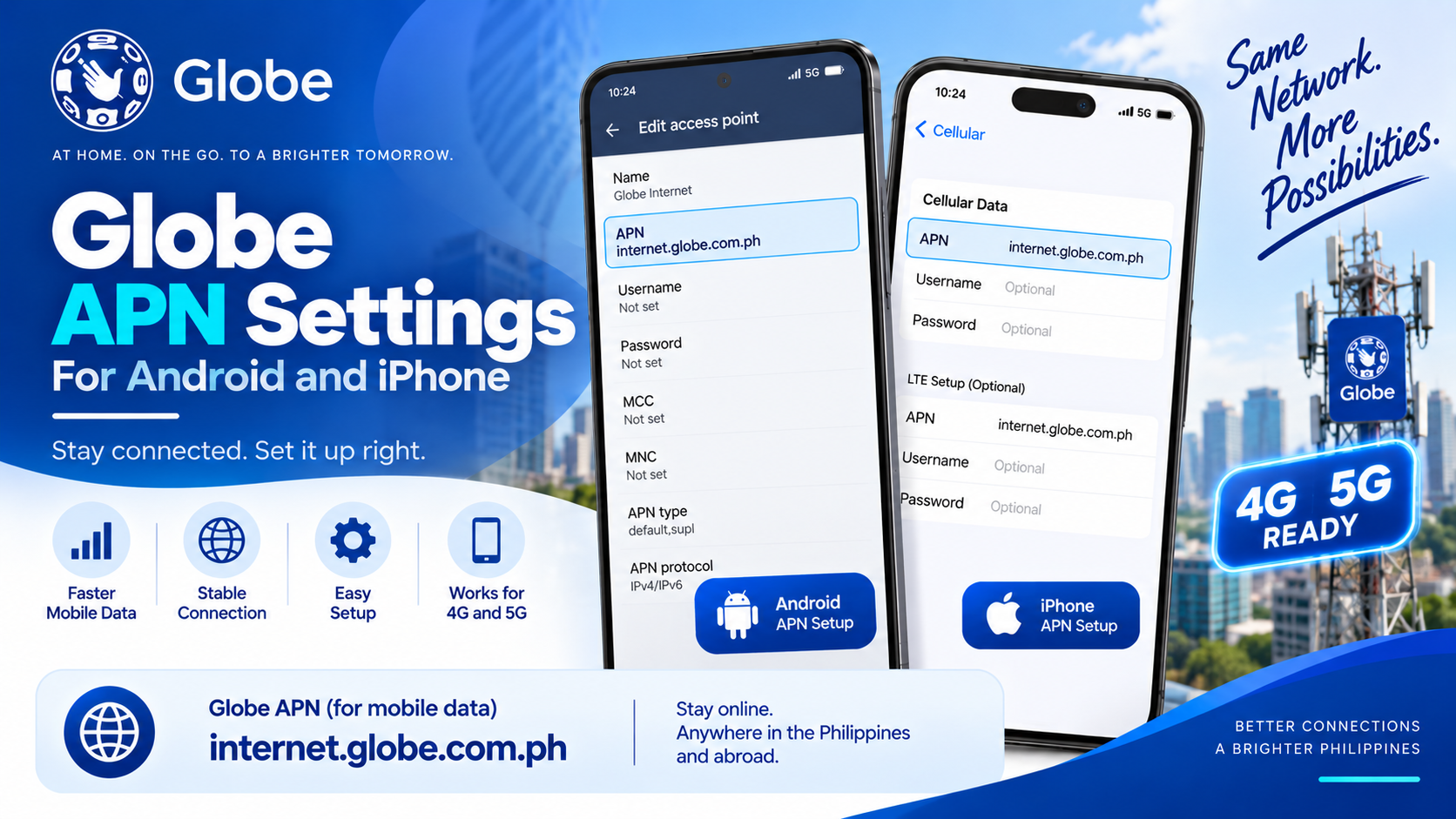
For current Globe mobile data, use:
internet.globe.com.ph
Globe’s support documentation gives this APN for data browsing. It also appears in Globe’s roaming guidance for users who need to configure mobile data abroad.
Avoid changing other APN fields without a reason. A phone may already receive the correct carrier configuration automatically.
APN for 5G
Globe does not require a separate APN simply because a compatible phone connects through 5G.
The APN listed by Globe for mobile data is:
internet.globe.com.ph
A 5G connection also depends on factors such as:
- A 5G-capable phone
- A compatible Globe SIM
- 5G coverage in the location
- Appropriate network settings
- An active mobile-data service
Globe states that customers need a 5G-capable phone, a compatible Globe network connection, a 4G/LTE SIM, and 5G coverage to use 5G.
Changing the APN alone cannot turn a 4G connection into 5G or increase the network’s maximum speed.
Globe APN for 4G and LTE
The same current Globe mobile-data APN can be used with compatible 4G/LTE service:
internet.globe.com.ph
Your phone still needs an appropriate network mode and a compatible Globe SIM.
For a phone that shows LTE or 4G signal but cannot browse, checking the APN is one troubleshooting step. Globe also recommends checking the data balance or promo status, mobile-data settings, network mode, and SIM condition.
How to Set Globe APN on Android
Android menus differ across Samsung, Xiaomi, OPPO, vivo, realme, Huawei, Google Pixel, and other brands. The wording can also change with Android versions.
A common route is:
Settings → Mobile Network / Connections → SIM → Access Point Names
Then:
- Select the Globe SIM.
- Open Access Point Names.
- Tap Add, New APN, or the + button.
- Enter
internet.globe.com.phin the APN field. - Leave fields that do not require manual changes at their default values.
- Save the APN.
- Select the new Globe APN.
- Turn mobile data off and back on.
- Restart the phone if data still does not work.
Globe notes that APN setup steps can vary by device model.
How to Set Globe APN on Samsung
On many Samsung Galaxy phones, the APN menu can be found through:
Settings → Connections → Mobile Networks → Access Point Names
Then:
- Select the Globe SIM.
- Tap Add.
- Enter
internet.globe.com.phin the APN field. - Leave fields without required values unchanged.
- Save the profile.
- Select the saved Globe APN.
- Turn mobile data off and back on.
Samsung menu names can differ based on the Galaxy model and One UI version.
How to Set Globe APN on iPhone
iPhones can handle carrier APN settings differently from Android phones.
On supported iPhone configurations, check:
Settings → Cellular → Cellular Data Network
Another iOS version may use slightly different labels.
Look for the APN field under the cellular-data section and use:
internet.globe.com.ph
Some iPhones receive carrier settings automatically, so a manual APN entry may not be available. Globe also notes that APN setup steps vary according to the device and model.
Globe APN for iPhone Personal Hotspot
Personal Hotspot uses cellular data from the selected mobile line. On devices that provide a separate Personal Hotspot APN field, use the carrier-provided configuration rather than copying random APN values from unrelated sources.
For Globe mobile data, the current Globe support documentation gives:
internet.globe.com.ph
Globe’s support material also uses this APN for mobile data during roaming.
Globe APN for Android Hotspot
A hotspot shares your phone’s mobile-data connection with another device.
Before using it:
- Turn on mobile data.
- Select the Globe SIM for mobile data.
- Check the APN.
- Turn on Mobile Hotspot.
- Connect the second device.
Changing the APN does not create a separate hotspot service. The phone still needs an active Globe mobile-data connection.
Globe APN for Prepaid SIM
For Globe Prepaid mobile data, the current Globe support information gives:
internet.globe.com.ph
An active data promo may also be required for affordable prepaid browsing. Globe advises prepaid customers to check their data balance and promo status through GlobeOne.
So, an APN change alone cannot restore browsing after a data allocation has been consumed or a promo has expired.
Globe APN for Postpaid
Globe’s current support information also lists:
internet.globe.com.ph
for mobile data browsing.
Postpaid users should also check their plan’s available data allowance. Globe states that postpaid customers can monitor their data through GlobeOne, and browsing may pause after the included allowance has been consumed.
Globe APN for eSIM
A Globe eSIM uses the cellular-data settings of the phone in the same way a compatible physical SIM can.
For mobile data, Globe lists:
internet.globe.com.ph
For an eSIM, select the Globe line under Cellular or SIM settings before checking its APN.
On a dual-SIM phone, make sure Globe is selected as the mobile-data line.
Globe APN While Roaming
Globe also lists internet.globe.com.ph for mobile data while roaming.
Globe’s roaming instructions tell customers to:
- Register an applicable roaming promo.
- Turn on Mobile Data.
- Turn on Data Roaming.
- Check the network connection.
- Set the APN to
internet.globe.com.ph. - Restart the phone where needed.
Roaming data also depends on an active roaming service or promo and availability of a partner network. The APN alone does not provide roaming access.
Globe APN Settings for Dual-SIM Phones
A dual-SIM phone can have separate settings for each mobile line.
Before editing the APN:
- Open the SIM settings.
- Select the Globe line.
- Set Globe as the mobile-data SIM.
- Open the APN menu.
- Check the Globe APN.
- Save the correct profile.
- Test mobile data.
A common mistake is editing the APN for SIM 2 while Globe is installed in SIM 1, or selecting another carrier as the default data line.
Globe APN Not Working
A correct APN does not guarantee mobile data. Check the following:
| Check | Action |
|---|---|
| Mobile data | Turn it on |
| Globe APN | Use internet.globe.com.ph |
| Data allocation | Check GlobeOne |
| Promo | Check its status |
| Airplane Mode | Turn it off |
| Network mode | Use an available automatic LTE/5G option |
| SIM | Remove and reinsert a physical SIM |
| Phone | Restart the device |
| Network | Check Globe coverage and signal |
| Second phone | Test the SIM in another compatible device |
Globe’s troubleshooting guidance recommends restarting the phone, removing and reinserting the SIM, checking mobile-data settings, reviewing data balance, and testing the SIM in another phone.
Globe APN Shows the Wrong Value
A carrier update, device reset, SIM replacement, or manual configuration can change the APN displayed on a phone.
Open the APN settings and check the value used for mobile data.
For Globe, the current value listed by Globe is:
internet.globe.com.ph
Save the correct profile and select it as the active APN.
Globe APN Keeps Resetting
Some phones manage carrier settings automatically. A manually created APN may also disappear after certain software or carrier configuration changes.
Try:
- Restarting the phone.
- Checking for carrier or system updates.
- Selecting the Globe SIM before editing APN settings.
- Resetting network settings.
- Rechecking the APN after the reset.
- Testing the SIM in another compatible phone.
Avoid repeatedly adding several APN profiles. Keep the configuration simple and use the carrier-provided setting.
How to Reset Globe APN Settings
Android phones usually provide an Reset to default option inside the APN menu.
A common path is:
Settings → Mobile Network → Access Point Names → Reset to default
After the reset:
- Restart the phone.
- Select the Globe SIM for mobile data.
- Check the APN.
- Use
internet.globe.com.phwhere manual configuration is required. - Test mobile browsing.
The exact reset option depends on the phone manufacturer.
Does Changing APN Make Globe Internet Faster?
Changing an APN does not automatically increase network speed.
An APN mainly tells the phone how to connect to mobile data. Actual speed depends on several other conditions:
- Network technology
- Signal quality
- Globe coverage
- Network traffic
- Phone capability
- SIM capability
- Available data service
- Server performance
- Location
Globe states that 5G access also depends on a compatible phone, SIM, network coverage, and other service requirements.
A correct APN can restore data access after an incorrect configuration, but it cannot create stronger coverage or upgrade unsupported hardware.
Does Globe APN Work for 5G?
Yes. Globe’s current support information specifies internet.globe.com.ph for mobile data, while 5G availability depends on compatible hardware, SIM support, coverage, and network conditions.
There is no need to invent a separate “5G APN” just to use Globe 5G.
Why Globe Has Signal but No Internet
Signal bars show that the phone has a cellular connection, but they do not guarantee working mobile data.
Possible reasons include:
- Mobile data is switched off.
- Globe is not selected as the data SIM.
- The APN is incorrect.
- The data promo has expired.
- The data allocation has been consumed.
- The phone has a temporary network problem.
- The SIM needs reseating or replacement.
- The device has an incompatible network configuration.
Globe specifically advises checking data balance and promo status, mobile-data settings, network mode, and the SIM itself during connection troubleshooting.
Globe APN and Network Mode Are Different
APN settings and network mode perform different jobs.
APN: tells the phone how to connect to mobile data.
Network mode: controls the cellular technologies the phone can use, such as LTE or 5G.
For example, a phone can have the correct Globe APN but still remain on LTE because 5G coverage is unavailable at that location.
Globe recommends an appropriate automatic LTE/3G/2G network setting as part of certain troubleshooting steps.
Globe APN Troubleshooting Checklist
Use this order for a Globe mobile-data problem:
- Check that Mobile Data is on.
- Check that Globe is selected for mobile data.
- Verify the APN as
internet.globe.com.ph. - Check your Globe data balance.
- Check your active promo or plan allowance.
- Turn Airplane Mode off.
- Restart the phone.
- Remove and reinsert a physical SIM.
- Check the network mode.
- Test the Globe SIM in another compatible phone.
Globe recommends several of these steps in its current troubleshooting guidance.
Frequently Asked Questions
What is the Globe APN?
The current Globe mobile-data APN is internet.globe.com.ph. Globe lists this value for data browsing and roaming data use.
What APN should I use for Globe 5G?
Use internet.globe.com.ph for Globe mobile data. 5G service also requires a compatible device, SIM, and coverage.
What is the Globe APN for 4G LTE?
Globe’s current mobile-data APN is internet.globe.com.ph.
What is the Globe APN for prepaid?
Use internet.globe.com.ph for mobile data. Prepaid users also need an applicable data service or promo for browsing.
What is the Globe APN for postpaid?
Use internet.globe.com.ph for mobile data. Postpaid data availability also depends on the allowance attached to the plan.
What is the Globe APN for eSIM?
For a Globe eSIM using mobile data, the current Globe APN is internet.globe.com.ph.
What is the Globe APN for roaming?
Globe’s roaming support pages specify internet.globe.com.ph as the mobile APN for data roaming. Data roaming and an applicable roaming service may also need to be active.
Do I need a different APN for Globe 5G?
No separate APN is required simply because the phone connects through 5G. Use Globe’s current mobile-data APN and make sure the device and SIM support 5G.
Why does Globe mobile data not work after setting the APN?
Check Mobile Data, the selected data SIM, your data allowance or promo, network mode, SIM condition, and network availability. Globe recommends these checks as part of its troubleshooting process.
Does APN affect Globe internet speed?
APN configuration can affect whether mobile data connects properly, but changing the APN does not automatically make the network faster. Speed also depends on coverage, network conditions, device capability, and the available mobile service.
Can I use APN on an iPhone?
Yes. Compatible iPhones can use Globe mobile data. Some iPhones receive carrier settings automatically, while others may provide an APN field under cellular-data settings. Globe advises that APN setup steps vary by device and model.
Can I use APN on Android?
Yes. Android phones provide APN settings under the mobile-network or SIM settings, although the exact menu varies by manufacturer and Android version.
What should I do after changing the Globe APN?
Save the APN, select it as the active profile, turn mobile data off and back on, then restart the phone if necessary. Test a webpage or another internet service after the network reconnects.
Final Takeaway
The main APN value to remember is:
internet.globe.com.ph
This is the current APN Globe lists for mobile-data browsing and also for data roaming.
Most users do not need a collection of “secret” APNs for faster 4G or 5G. Start with the carrier-provided configuration, then check mobile data, the selected SIM, your data allowance, network mode, and the physical or eSIM connection.
For an Android phone, the APN can usually be checked under the mobile-network settings. On iPhone, carrier configuration may be automatic, with manual APN options available on supported setups. Device menus vary, so the exact path depends on the phone model and software version.
A correct APN can help restore mobile data after a configuration problem, but it cannot replace an active data service or improve network coverage by itself.